
Kubbe
macOS app for playing PC gamesmacOS app for playing PC games
PC games, finally on Mac.



The context
On a Mac, most PC games refuse to start. Workarounds exist, but they talk Wine bottles, DirectX translation layers and command lines: to play with friends at night, you end up keeping a PC on the side.
The challenge
Hide all that machinery behind an app that feels like an Apple app: install your launcher, click Play. And when a game crashes, explain it in plain words instead of leaving a black screen.
My answer
A library of game covers, a single blue, no borders. Each game runs in its own isolated Windows; Steam, Epic Games, GOG, Battle.net and Ubisoft Connect install in one click and their games show up on their own. A diagnosis reads the log after a crash and suggests the next graphics engine. The site mirrors the app pixel for pixel: its window is playable, then it turns into a scrolling wall of covers.
The result
A complete app, with its four graphics engines, its updates and its license, and its sales site on kubbe.app, in French and English. I designed it end to end, then built it with Claude Code: the app in SwiftUI, the site in Next.js.
What Kubbe can do
Run PC games on an Apple silicon Mac, with no PC and no Windows license
Install Steam, Epic Games, GOG, Battle.net and Ubisoft Connect, each in its own Windows
Gather every game in a single library, with its cover
Pick one of four graphics engines per game, from DirectX 9 to DirectX 12
Explain a crash in plain words and suggest the engine to try next
Also run old MS-DOS and Windows 3.1 games
The app and its site, controller in hand.
Kubbe’s real screens, then the best moments of its site: scroll, hover.Kubbe’s real screens, then the best moments of its site: scroll, tap.
The library
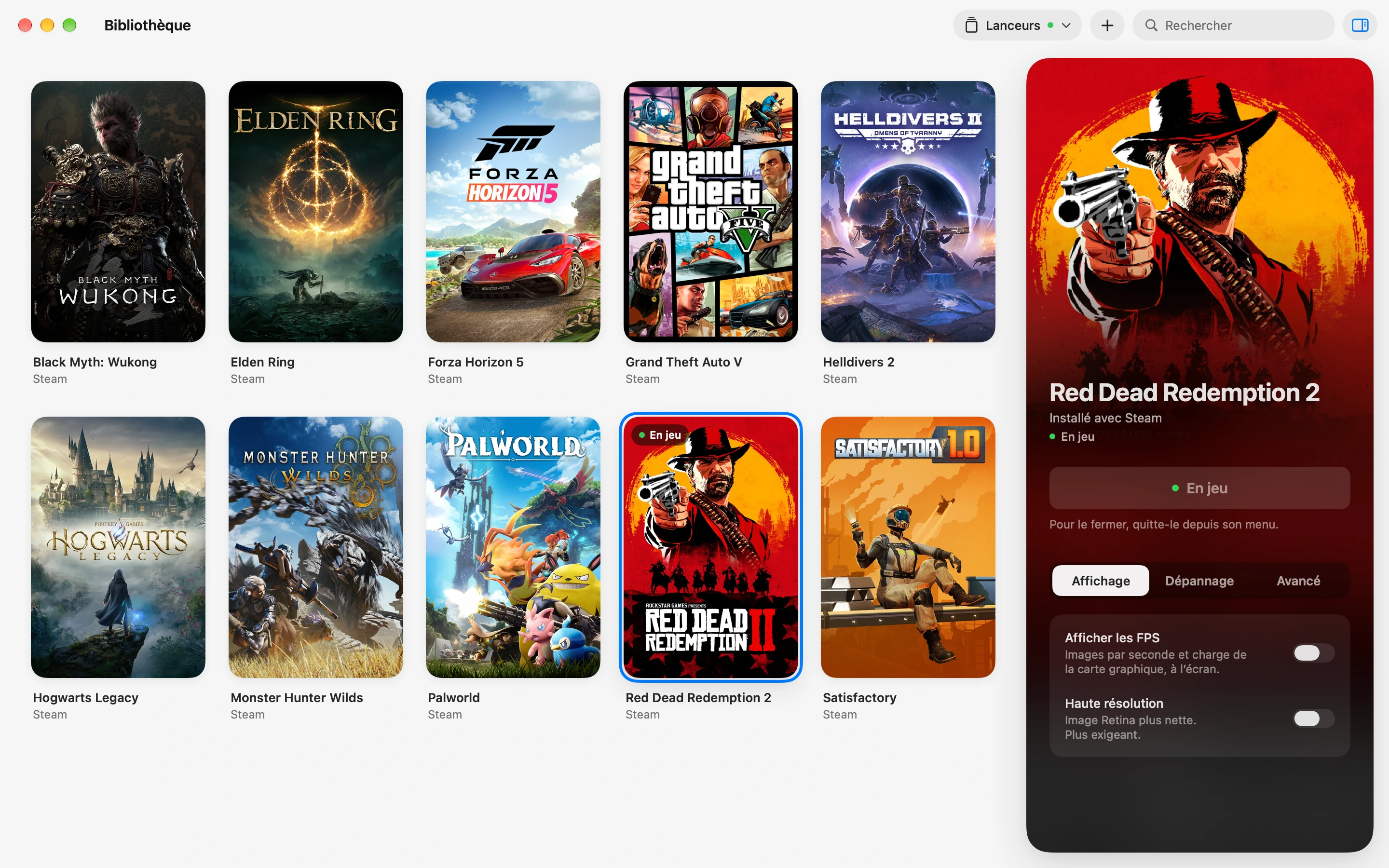
Kubbe’s window, rebuilt point for point from the app. On a computer, it’s playable: hover a game, launch it, switch tabs, search, tuck the panel away. Nothing actually launches.Kubbe’s real window, as the app shows it. On a computer, its point-for-point rebuild is playable with the mouse.









Every detail, up close
Pieces of the app’s real windows, exactly as it displays them: nothing redrawn.
Every game shows where it stands.
Launching, playing, picked: the state reads on the cover, and Play waits on the one you picked.

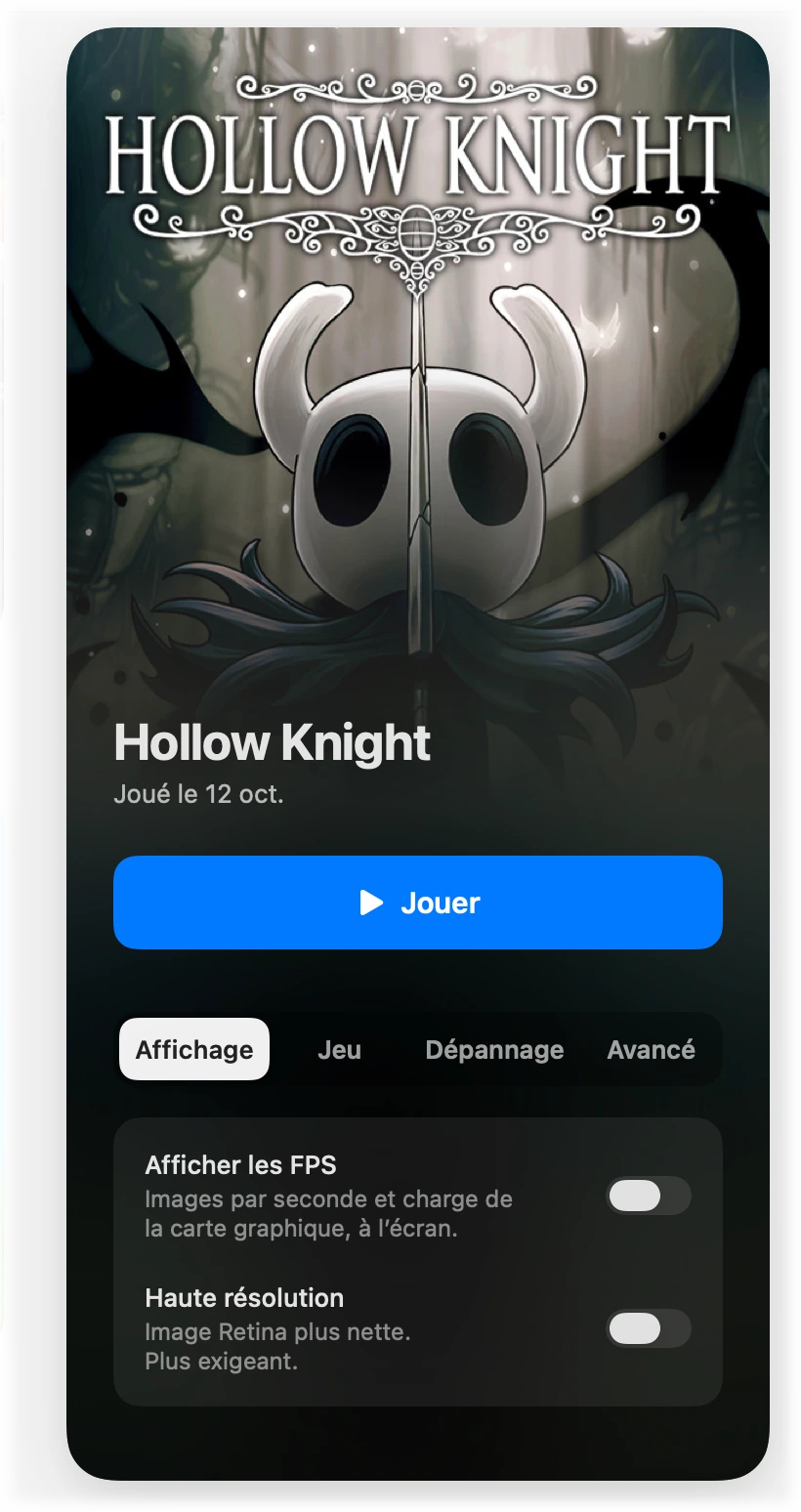
The game panel.
Its poster, a big Play button, and its settings in four tabs.
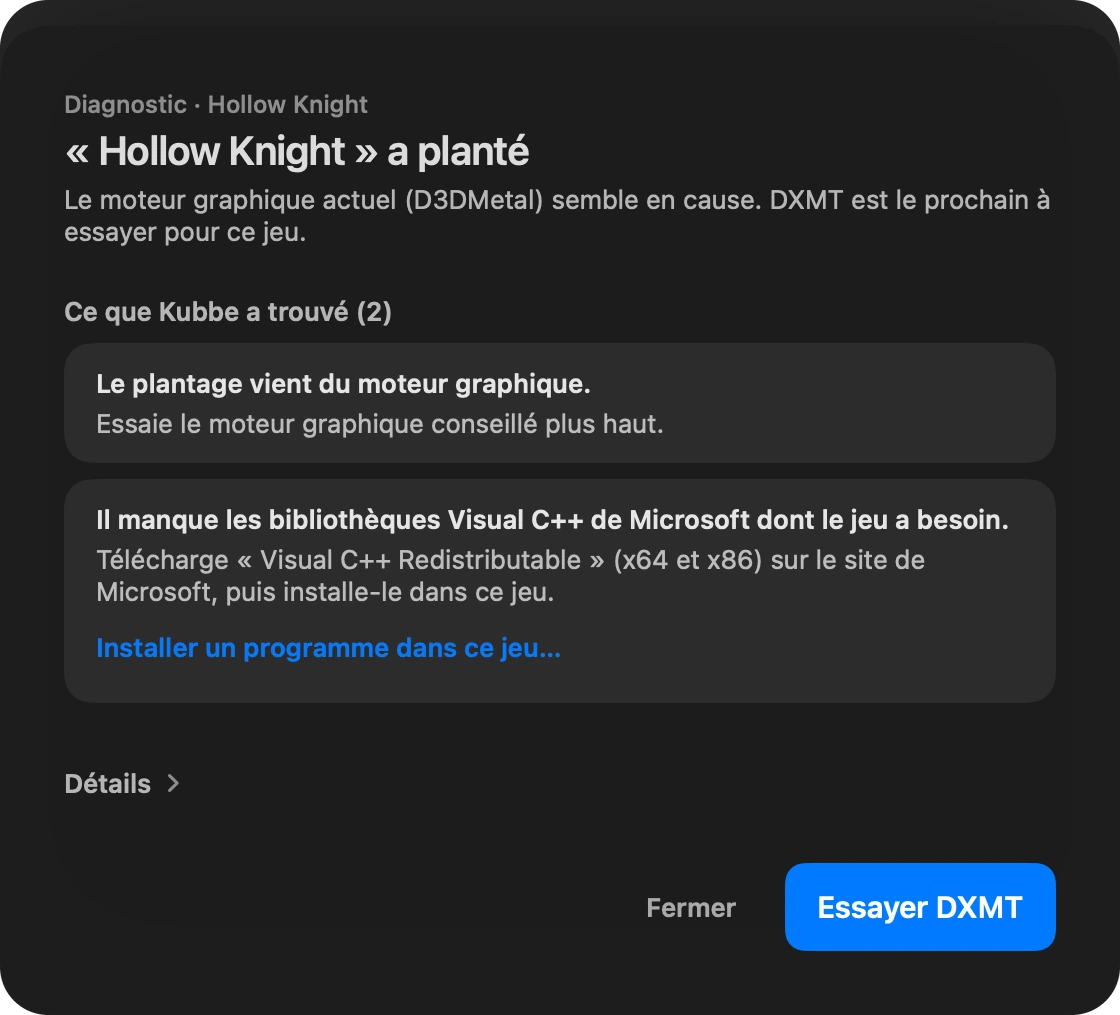
A crash, explained.
If a game won’t start, the app says so. One click and it reads the log: the cause in plain words, and the engine to try next.

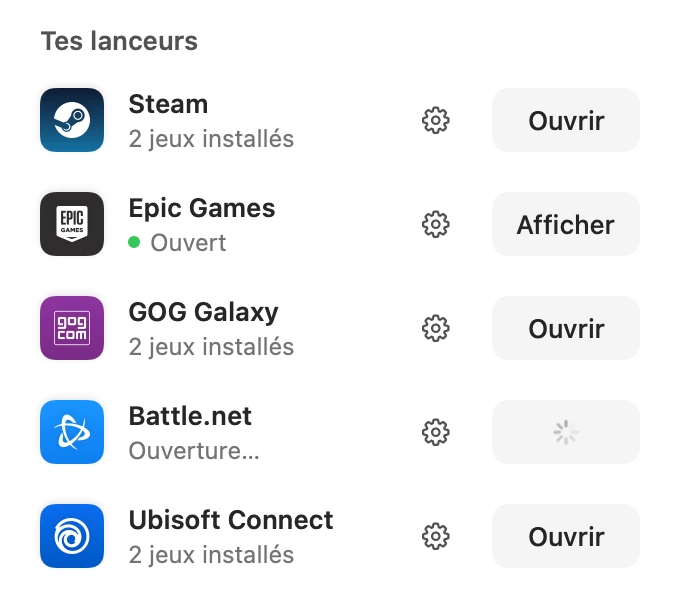
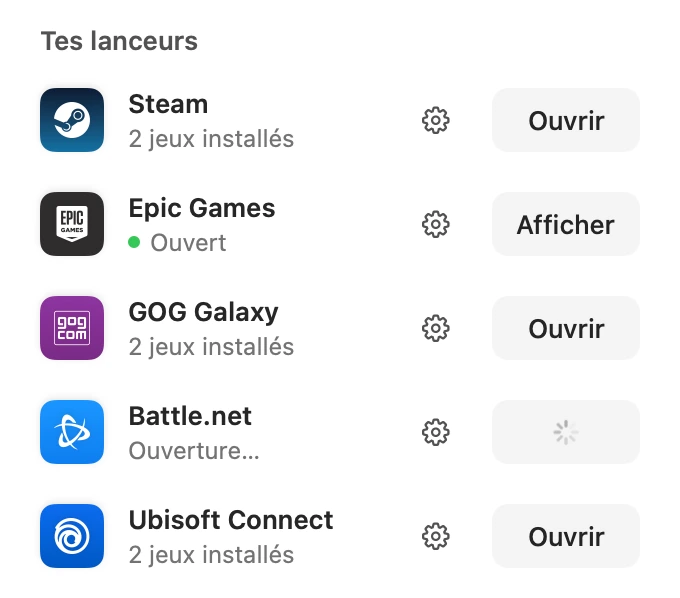
Every launcher, within reach.
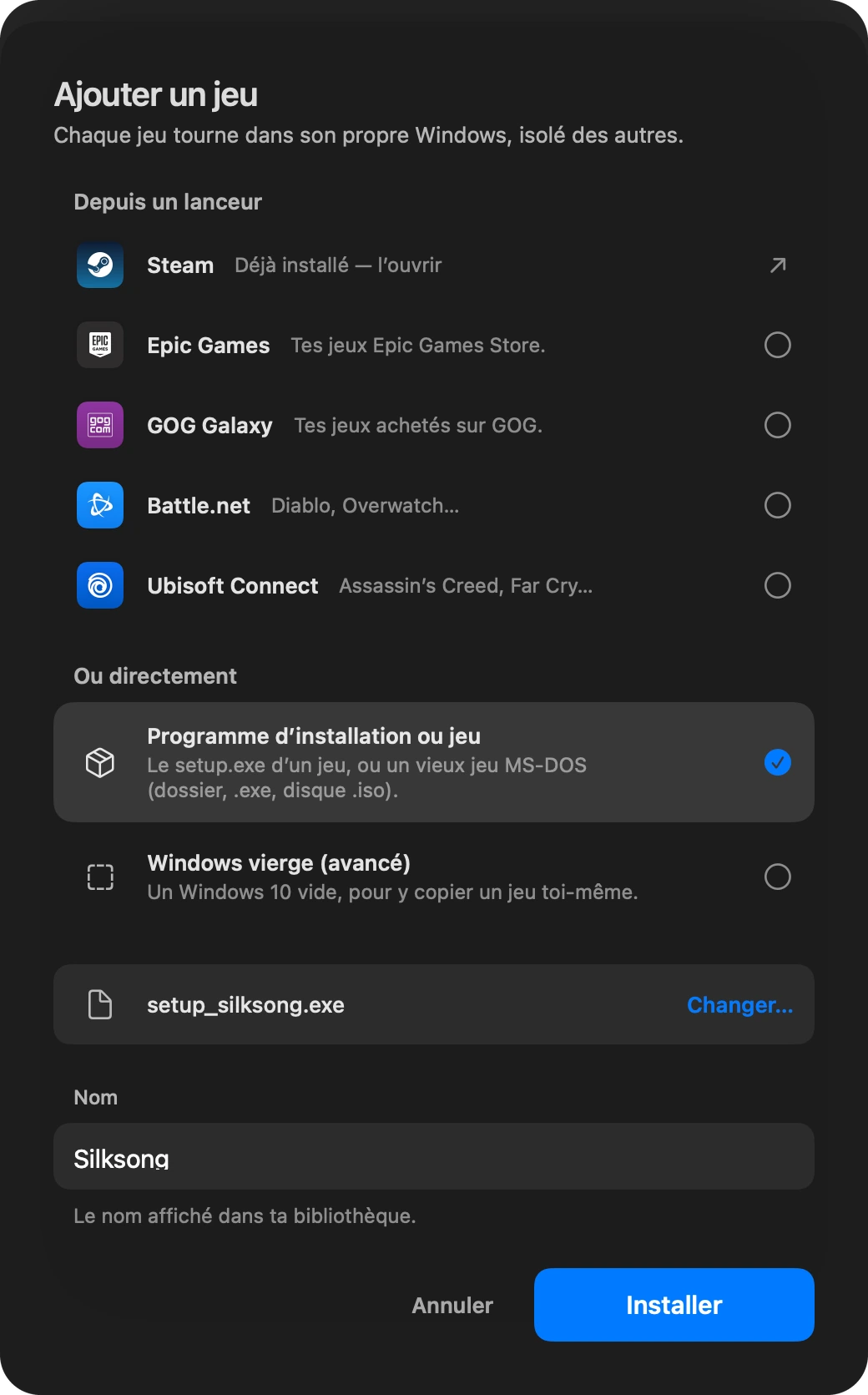
Steam, Epic Games, GOG Galaxy, Battle.net and Ubisoft Connect, each in its own Windows.
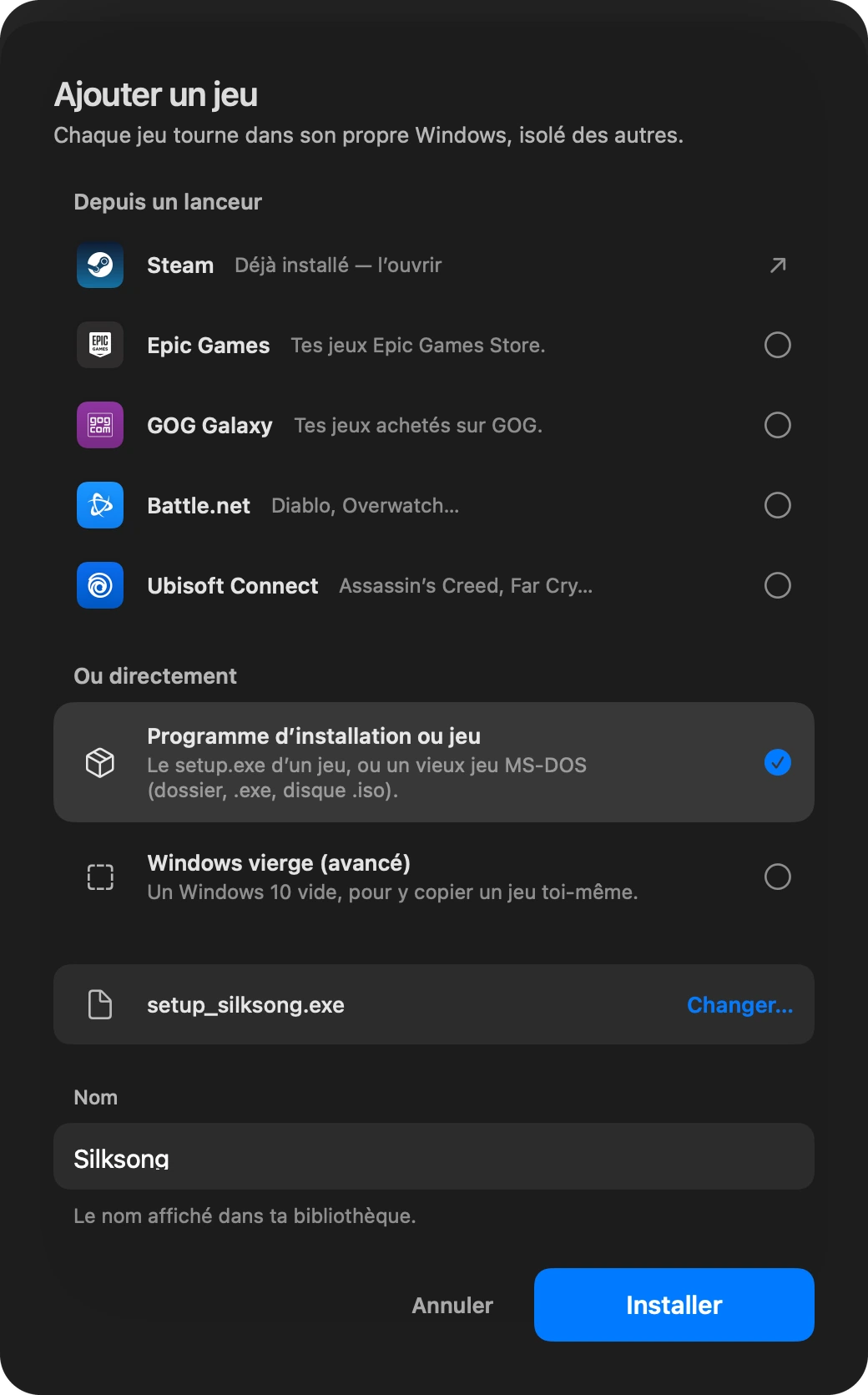
Add a game.
From a launcher, from the game’s installer, or a blank Windows for the odd cases.
The site: the infinite wall
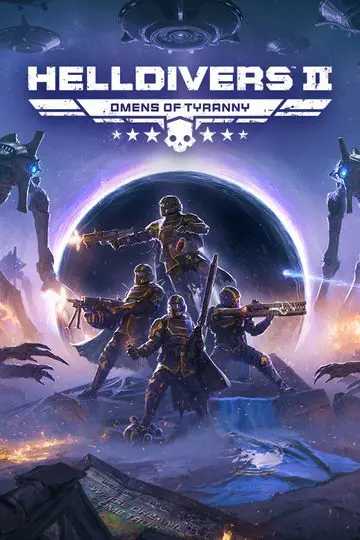
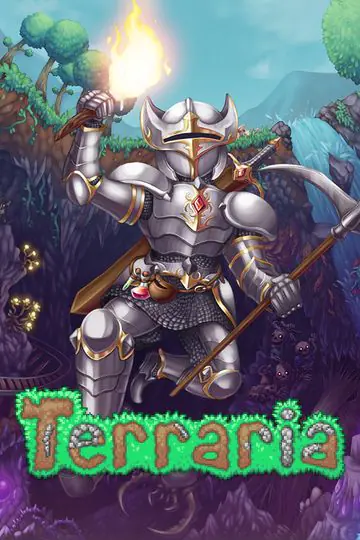
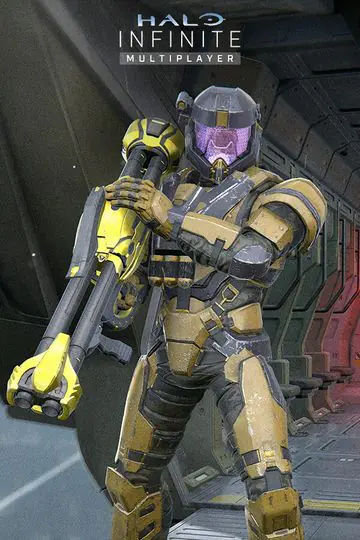
The app window rises over a drifting wall of game covers. Hover a game to pick it, then scroll: the window goes full screen and becomes a tilted wall racing under the title.The top of the site: a wall of game covers drifting behind the app window. Tap a game to pick it. On a computer, as you scroll, the window goes full screen and becomes a tilted wall.













































For Apple silicon Macs
Your PC games,
finally on your Mac.
Steam, Epic Games, GOG, Battle.net, Ubisoft Connect: install your launcher, hit Play. No PC, no Windows license.
Gaming on a Mac, your games kept saying no.Now they say yes.
No more keeping a PC around to play with your friends. Two steps, and you’re in the game.
Step 1
Install the app
It sets everything up on its own. You just add D3DMetal, Apple’s free graphics translation layer.
Step 2
Add your games, and play
From your launcher or the game’s own installer. One click on Play, and you’re off.

The launcher Dock
The five supported launchers, lined up like the Mac’s Dock. Hover it: the magnifier follows the pointer and each launcher’s name appears.The five supported launchers, lined up like the Mac’s Dock, their names underneath. On a computer, the magnifier follows the mouse.
Steam · Epic Games · GOG Galaxy · Battle.net · Ubisoft Connect